
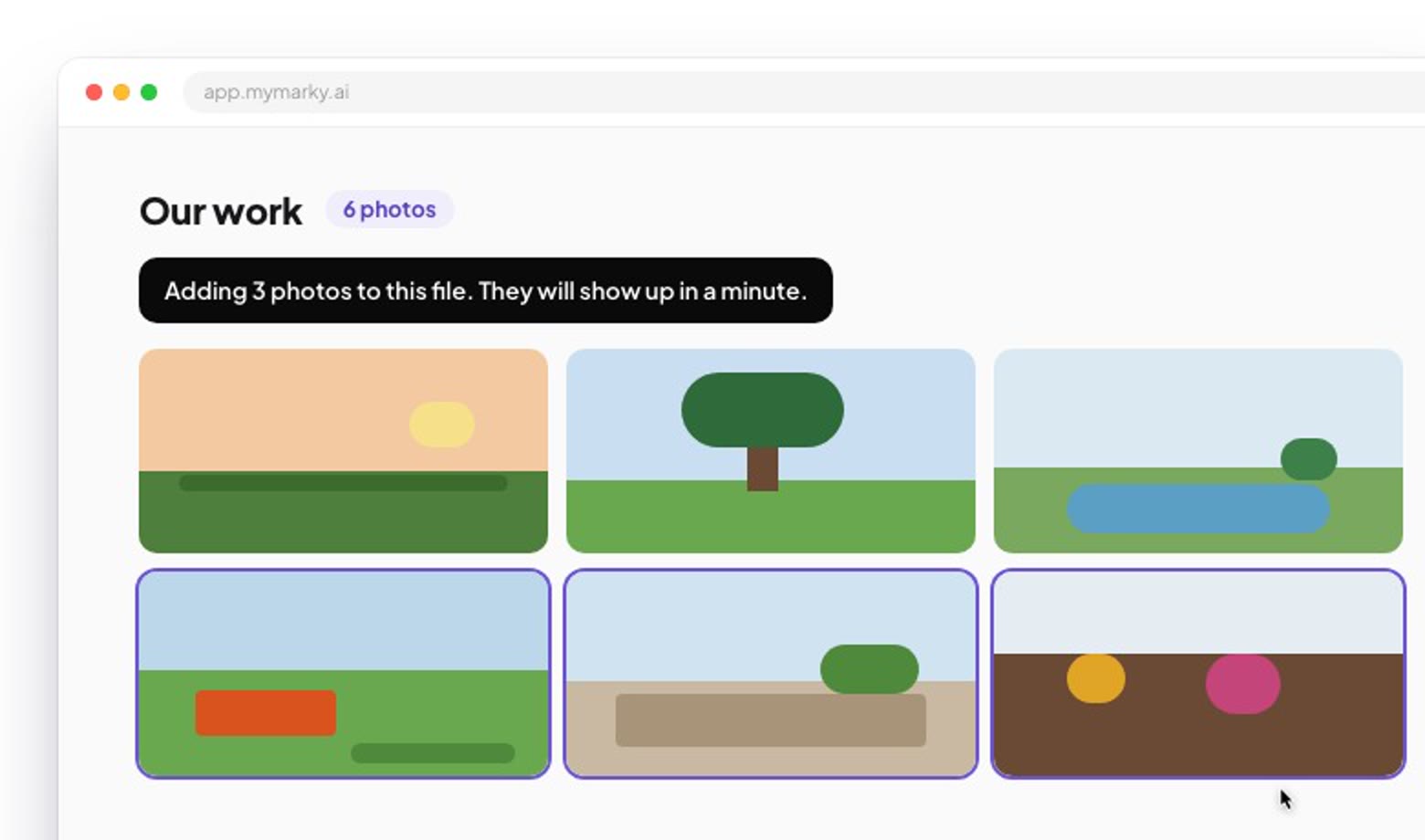
You run a lawn care company. The best photos of your work are already on your Facebook Page, your Instagram or your Google Business profile. Marky can copy them into your Library, so your posts show your real work and not a stock photo.
Bring in photos from your accounts
Step 1
Open Library in the left menu. Click Add Images, then From Your Accounts. If you are already inside a photo file, click Add Image and pick Add from Facebook, Instagram or Google instead.
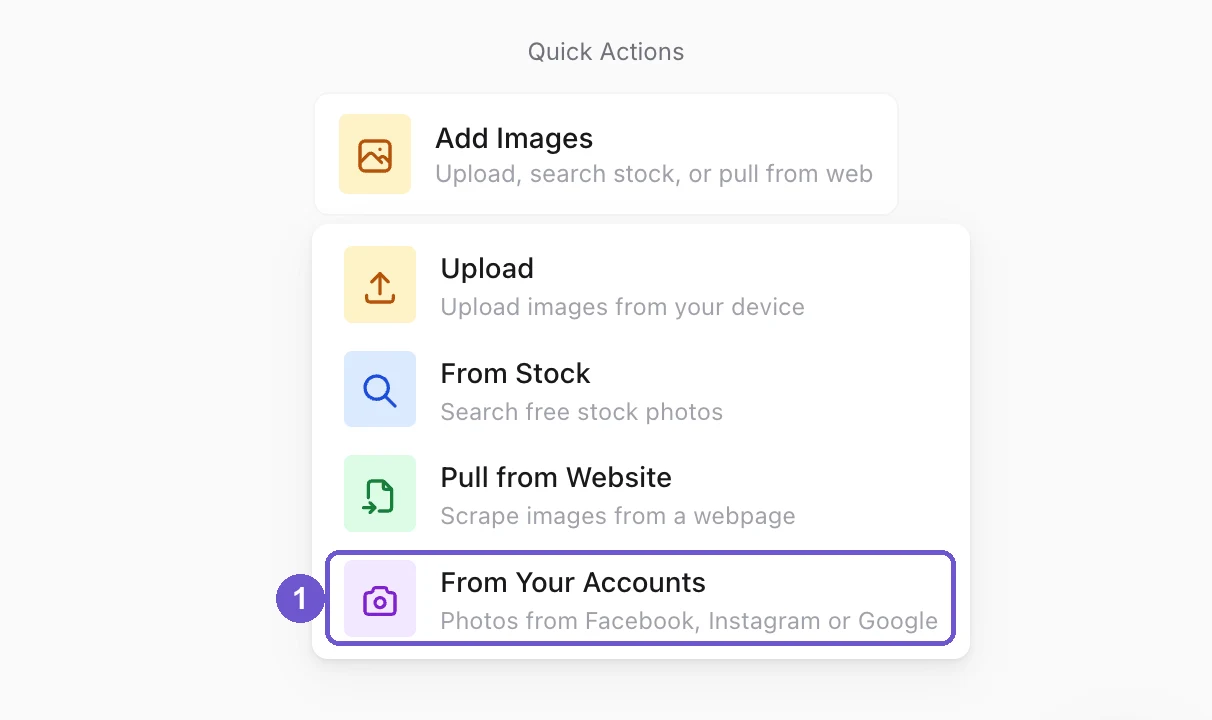
In the picture: 1 is From Your Accounts.
Step 2
The box is called Add your photos. If you have not connected an account yet, it asks you to. Click Connect an account and add your Facebook Page, Instagram or Google Business profile. Then do Step 1 again.
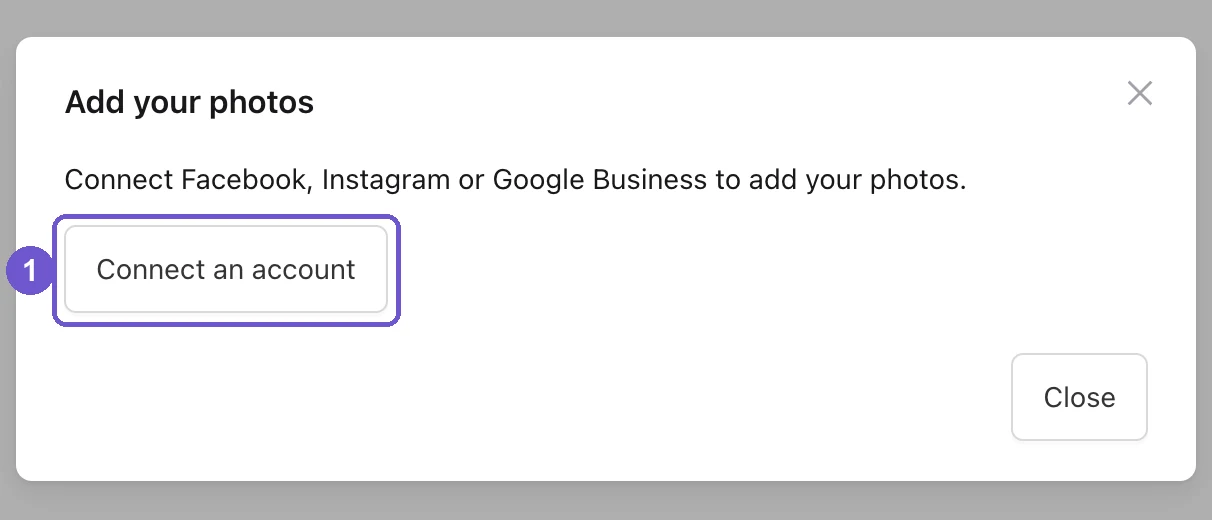
In the picture: 1 is Connect an account.
Step 3
Your photos show under the name of each account. Click the ones you want. A check shows on each one you pick.
Step 4
Click Add with the number of photos you picked, like Add 3 photos. Marky copies them into your Library. They show up in about a minute.
Good to know
Photos you already have in your Library are not shown again. If an account says it can not see its photos, click Reconnect and allow access. Your photos stay on your accounts. Marky only makes a copy.
What you get
Your posts show your real work, from jobs you already posted, without saving and uploading each picture by hand.