
You run a plumbing company and you post a few times a week. This week we changed six small things that save you a trip back into the app. Here is each one, and where to find it.
The pictures are illustrations of the screens, drawn to match the wording in the app. They are not screenshots, and the posts in them are made up.
1. See how each post did
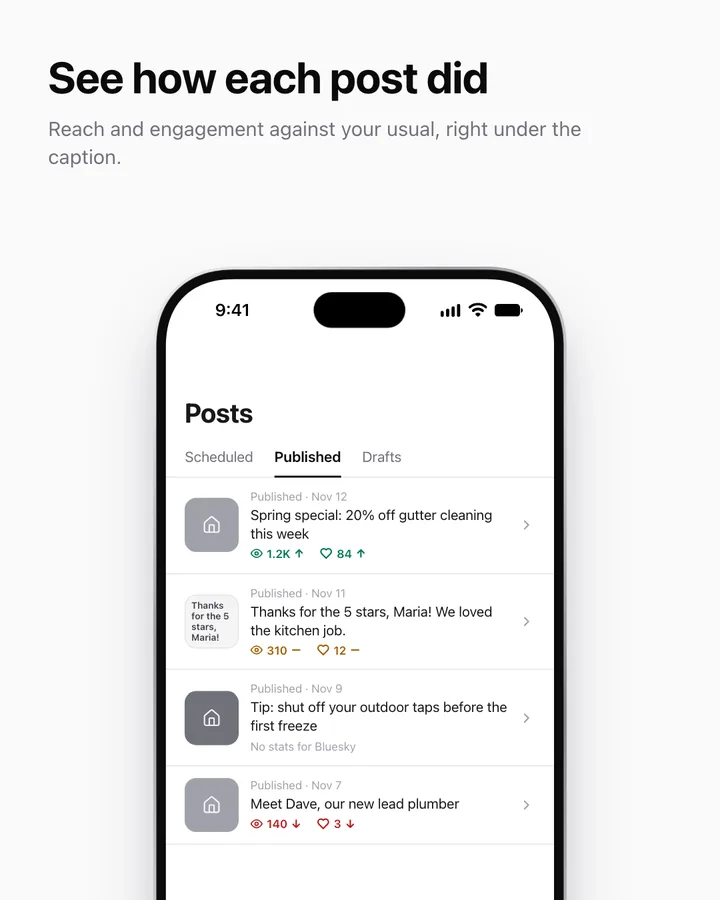
Open Posts, then Published. Under each caption you now see reach and engagement, with an arrow that says how the post did against your usual. A green up arrow is above your usual, a yellow dash is about the same, a red down arrow is below. A post that only went to Bluesky says No stats for Bluesky, because we do not read stats there. A post with no picture shows its first words as the tile.
2. See what didn't go out
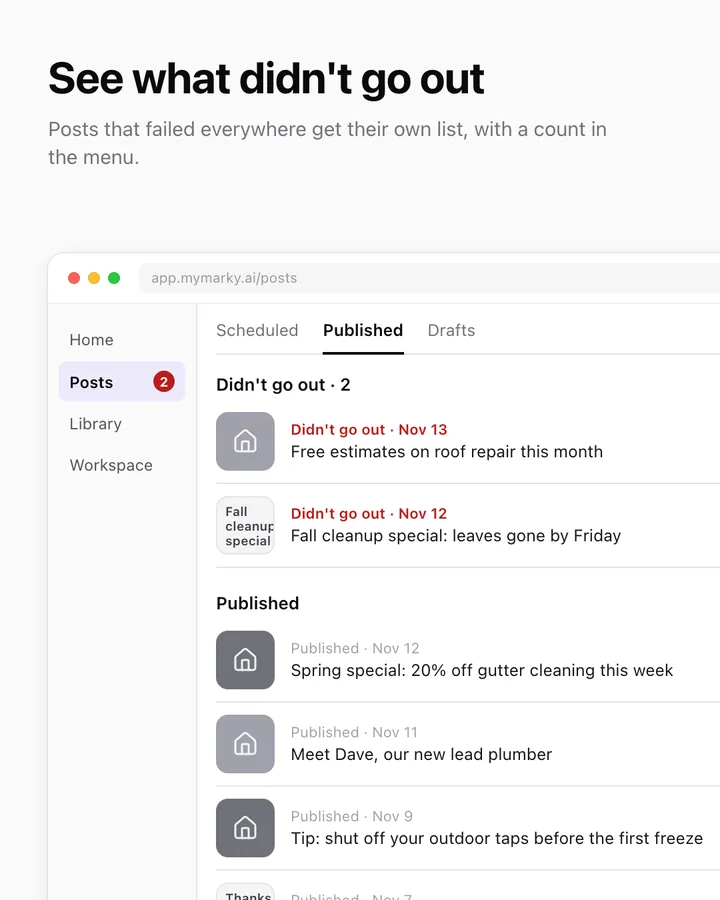
In Posts, open Published. A post that failed on every account you sent it to sits in its own Didn't go out list at the top, with a count. It looks back 30 days. The same count shows on Posts in the left menu. A post that reached at least one account stays in Published.
3. Tall pictures by default
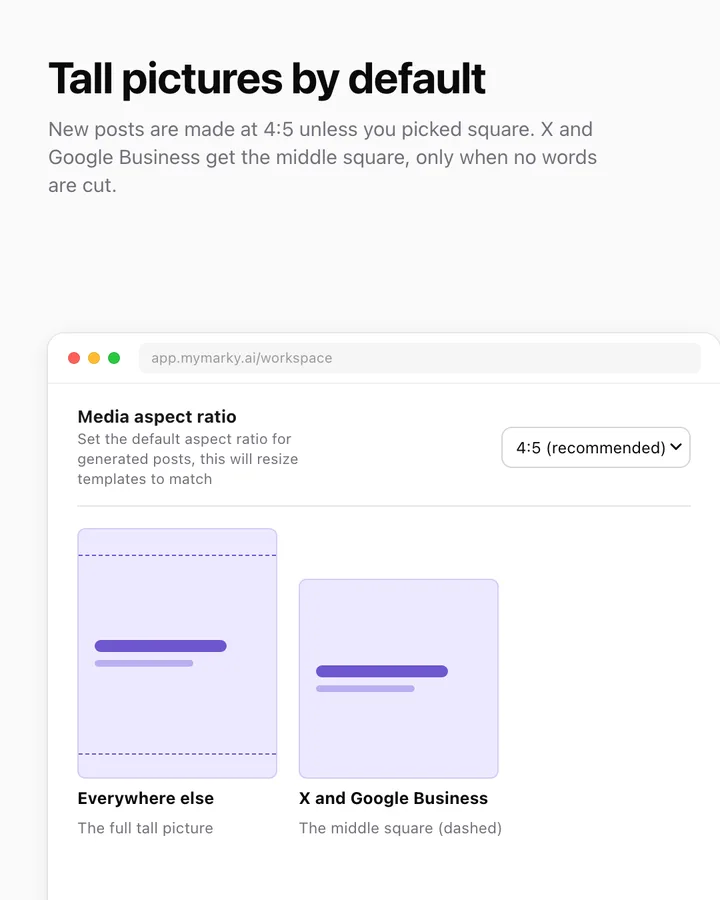
New posts are made at 4:5, a tall shape. If you picked square before, that choice stays. You can change it under Media aspect ratio in your workspace design settings. X and Google Business show a middle square of a tall picture, so we crop it to that square for those two, and only when your headline and words sit inside it. If they would be cut, the full picture goes out as before.
4. TikTok slides keep their shape
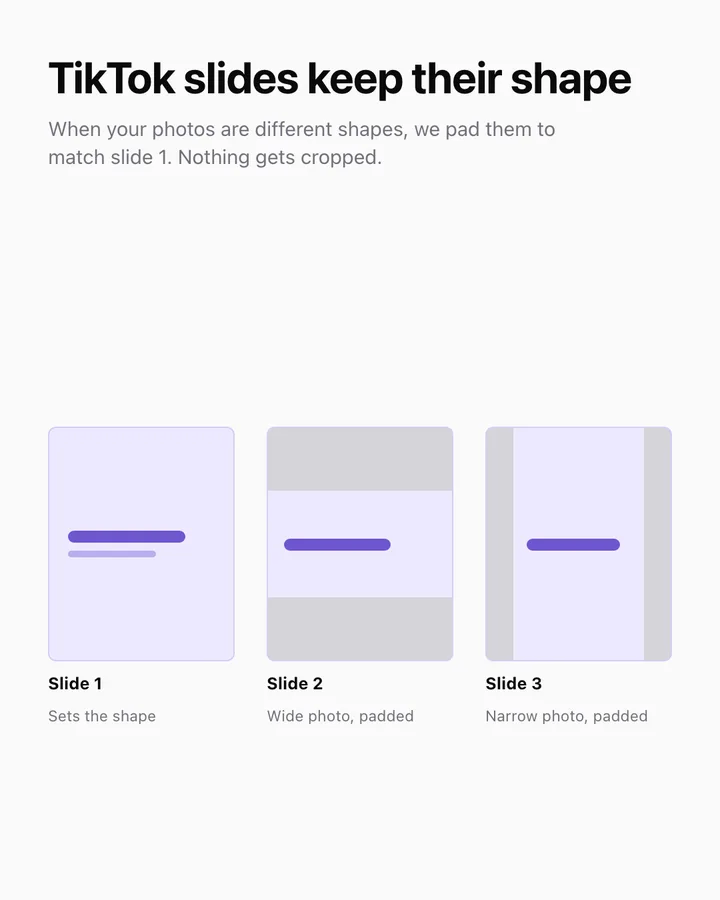
If your TikTok photo post has pictures in different shapes, we pad the odd ones to match the first slide. Nothing is cropped or stretched.
5. Know a video is too long before you schedule
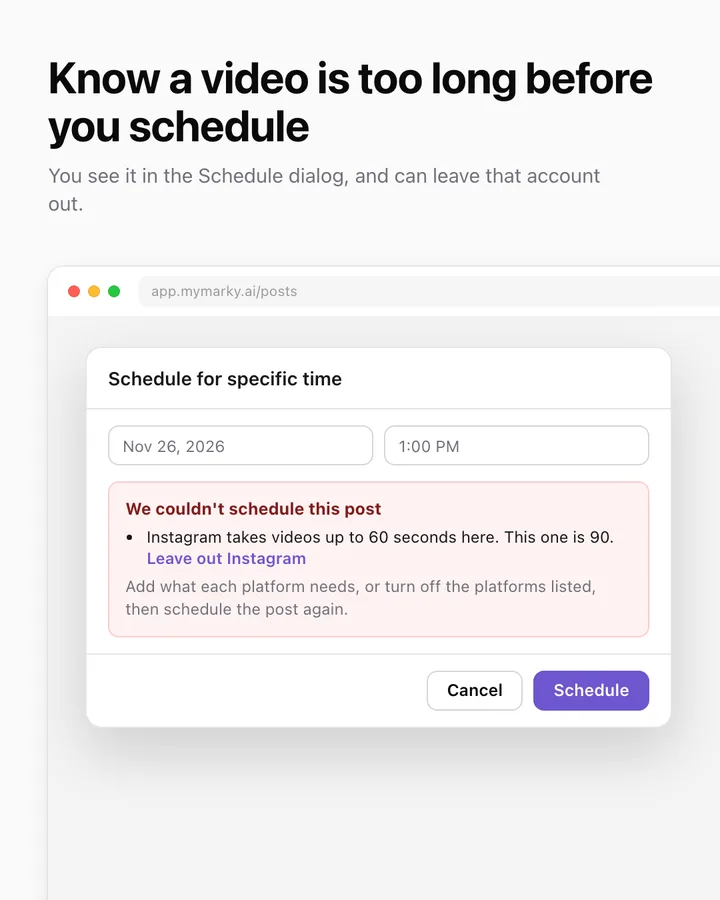
When you schedule a post with a video that is too long for an account, the Schedule for specific time window says so, for example that Instagram takes videos up to 60 seconds here and this one is longer. Click Leave out Instagram and the post is scheduled for your other accounts. Or trim the video and try again.
6. One button to schedule the week
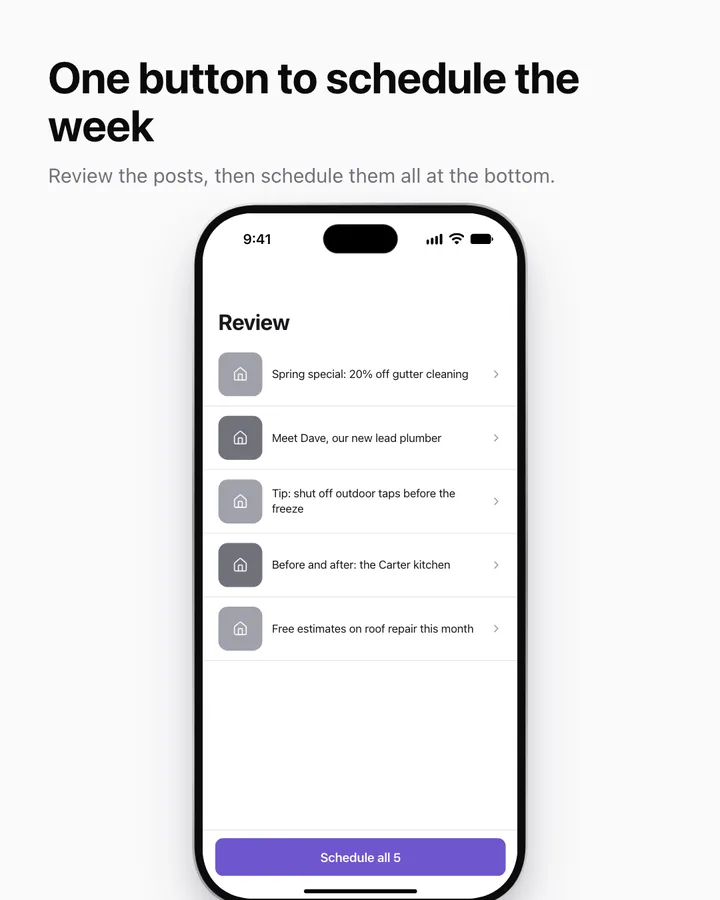
On the review screen there is now one Schedule all button, with the number of posts, at the bottom of the list. The extra one at the top is gone. It asks you to confirm, then puts the posts in your queue at your next open posting times.
What you get
You can see which posts worked, catch the ones that never went out, and schedule a week without checking the shape or length of every post first.