
You made a great video of a job, with your phone number on the bottom. Then it posts, and the TikTok caption sits right on top of the number. Safe zones show you where each app puts its buttons and text, so you can fix it before it goes out.
How to check your safe zones
Step 1
Open a post with a tall (9:16) video or photo. Click it in Posts to open the editor.
Step 2
In the preview on the right, tap TikTok (or Instagram for Reels and Stories).
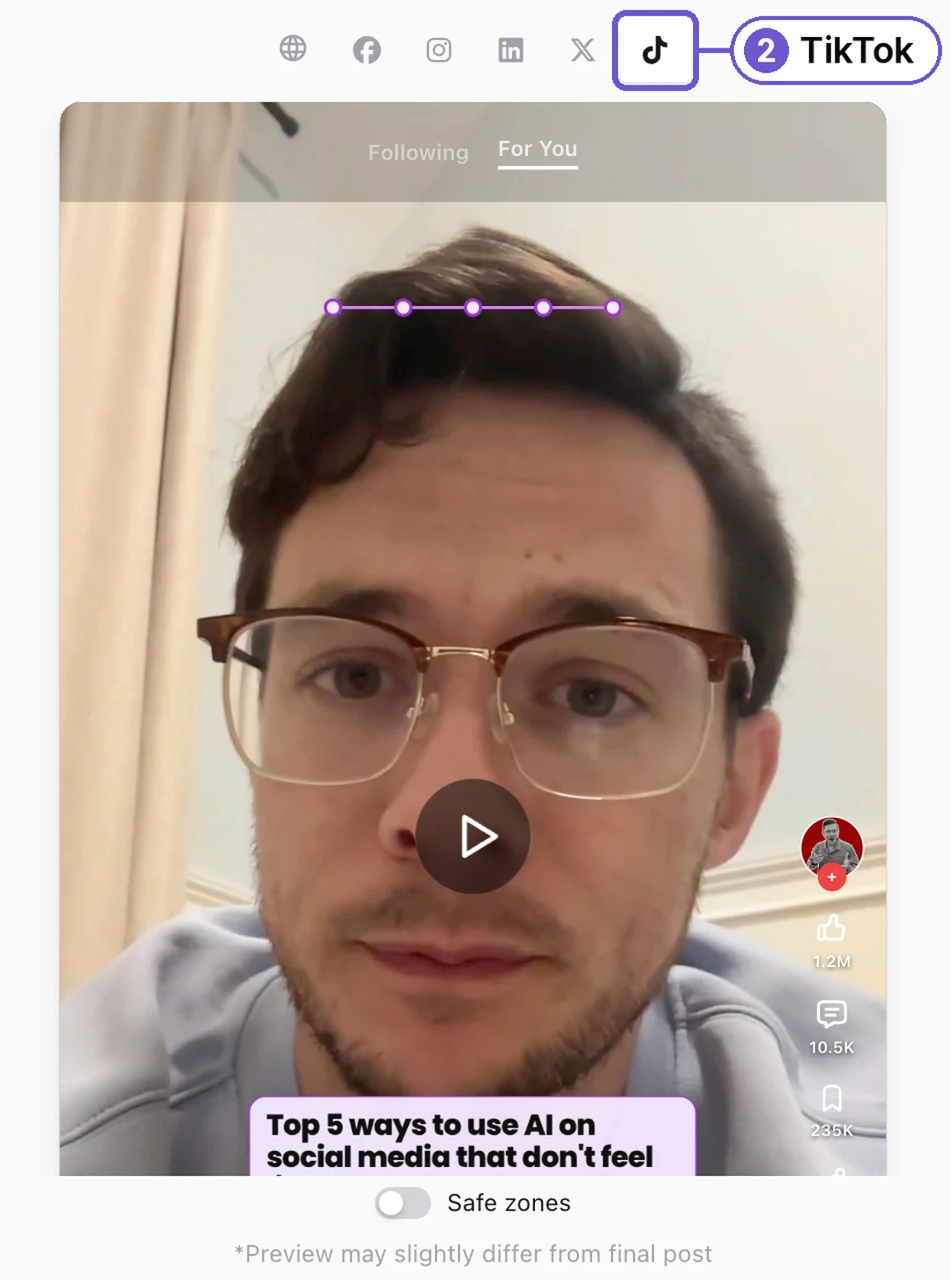
Step 3
Turn on Safe zones under the preview. Red areas may be covered by the app's buttons and text. Keep key words, faces and phone numbers out of the red.
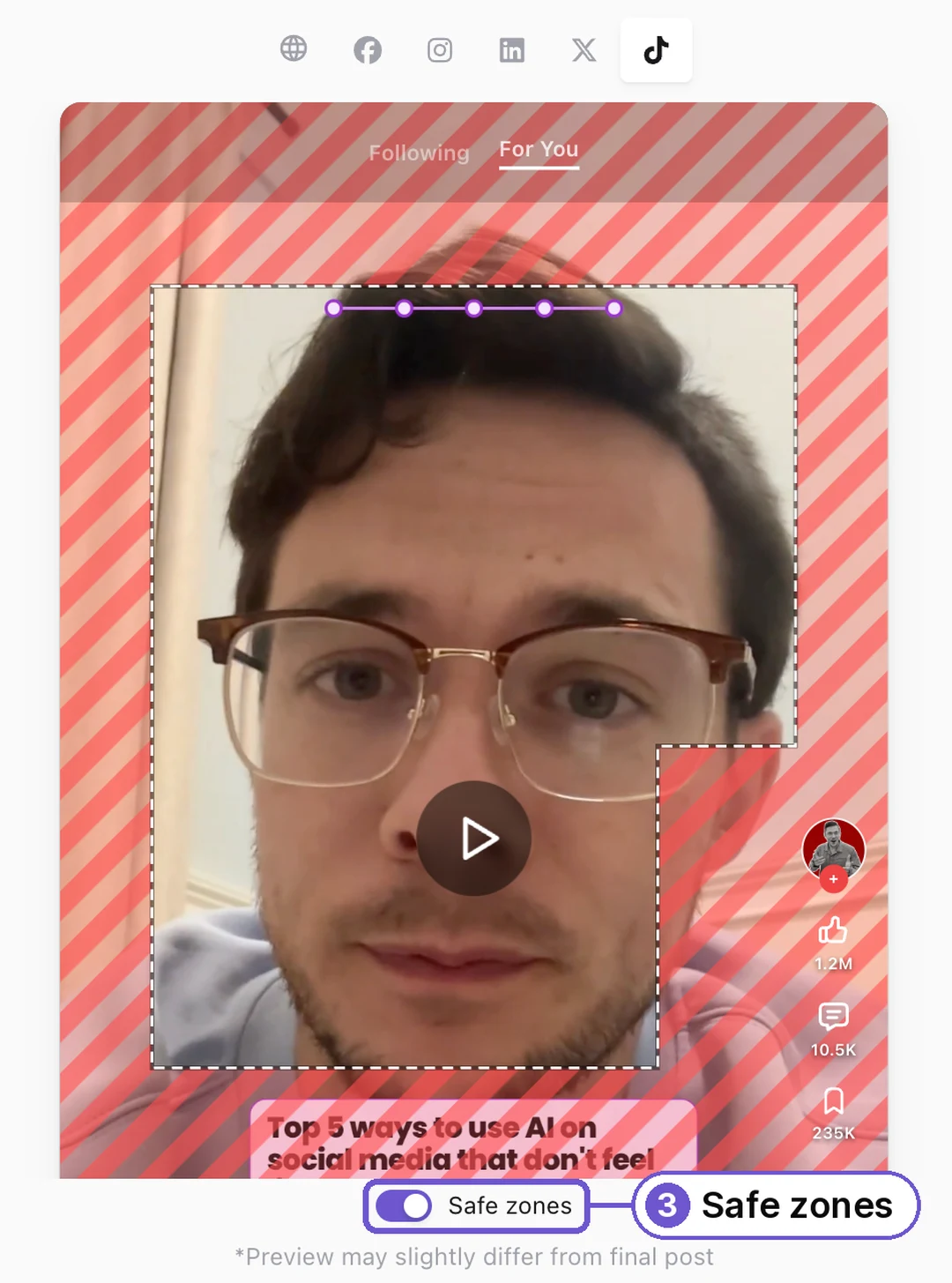
Safe zones show for TikTok, Reels, Shorts, Stories and Pins. They follow each app's own guides. LinkedIn, X and Google Business don't publish guides, so the switch doesn't show there.
What you get
Your offer, your number and your face stay where people can see them. Want to check a video before you upload it? Try our free safe zone checker.