
Allow Pop-Ups to Connect Your Social Media
When connecting your social media accounts to Marky, a login window will open in a pop-up.
If pop-ups are blocked in your browser, the connection may fail.
Follow the steps below to allow pop-ups.
Google Chrome
Desktop (Windows / Mac)
- Open Chrome
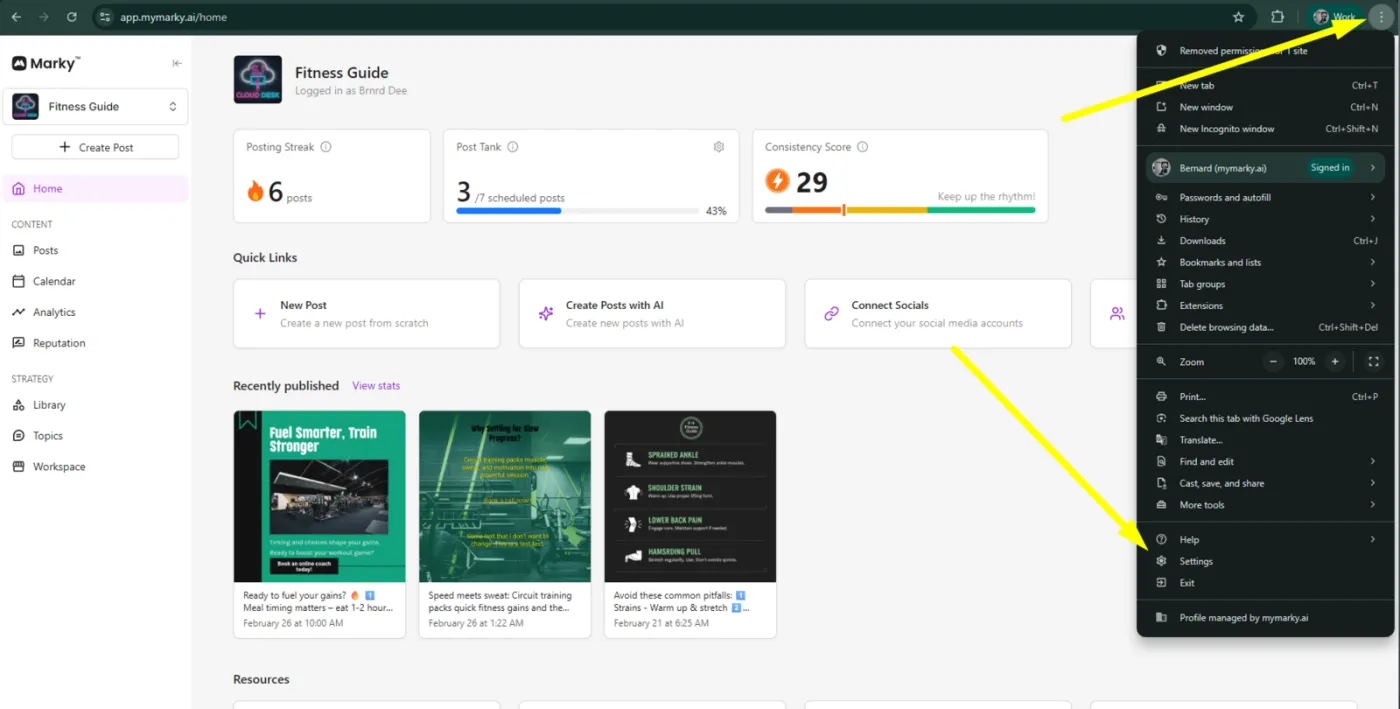
- Click the three dots (⋮) in the top right
- Click Settings
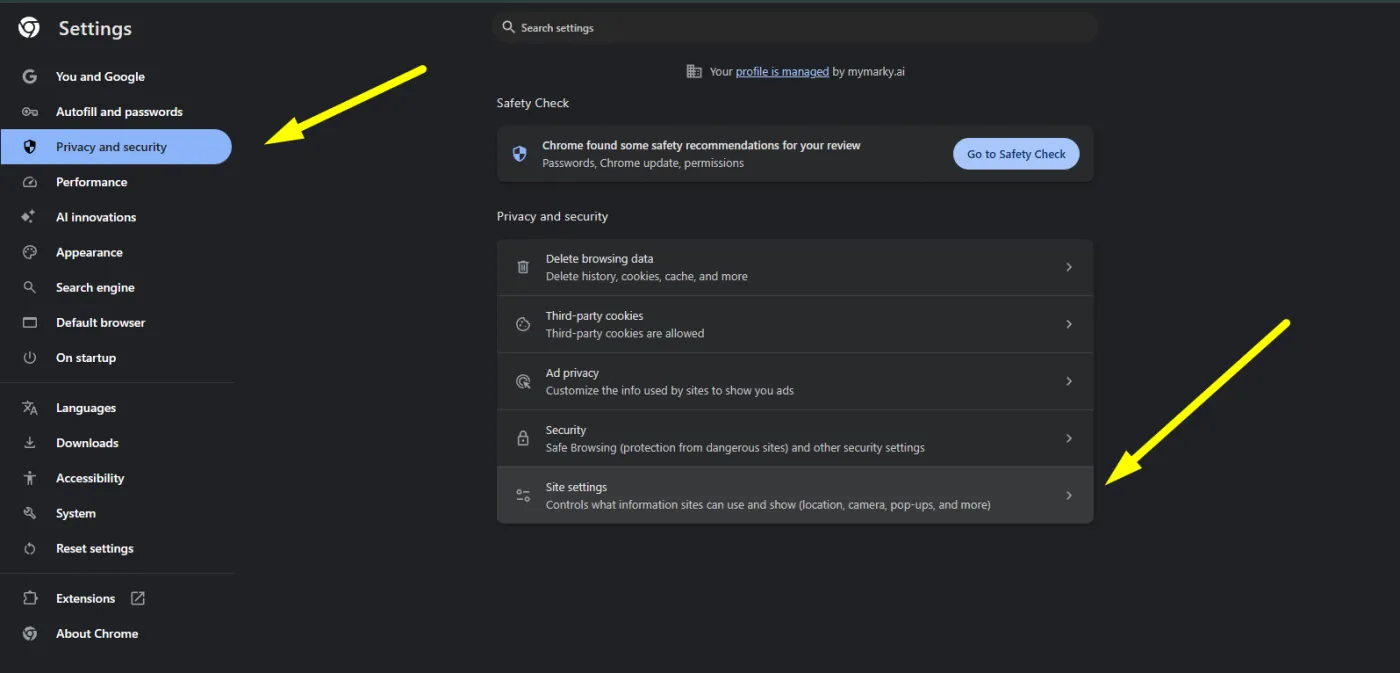
- Go to Privacy and security
- Click Site settings
- Select Pop-ups and redirects
- Set it to Sites can send pop-ups and use redirects
Related Article: https://support.google.com/chrome/answer/95472?hl=en&co=GENIE.Platform%3DDesktop
Mobile (Android)
- Open the Chrome app
- Tap the three dots (⋮)
- Tap Settings
- Tap Site settings
- Tap Pop-ups and redirects
- Turn the toggle on
Microsoft Edge
Desktop (Windows / Mac)
- Open Edge
- Click the three dots (…)
- Click Settings
- Select Cookies and site permissions
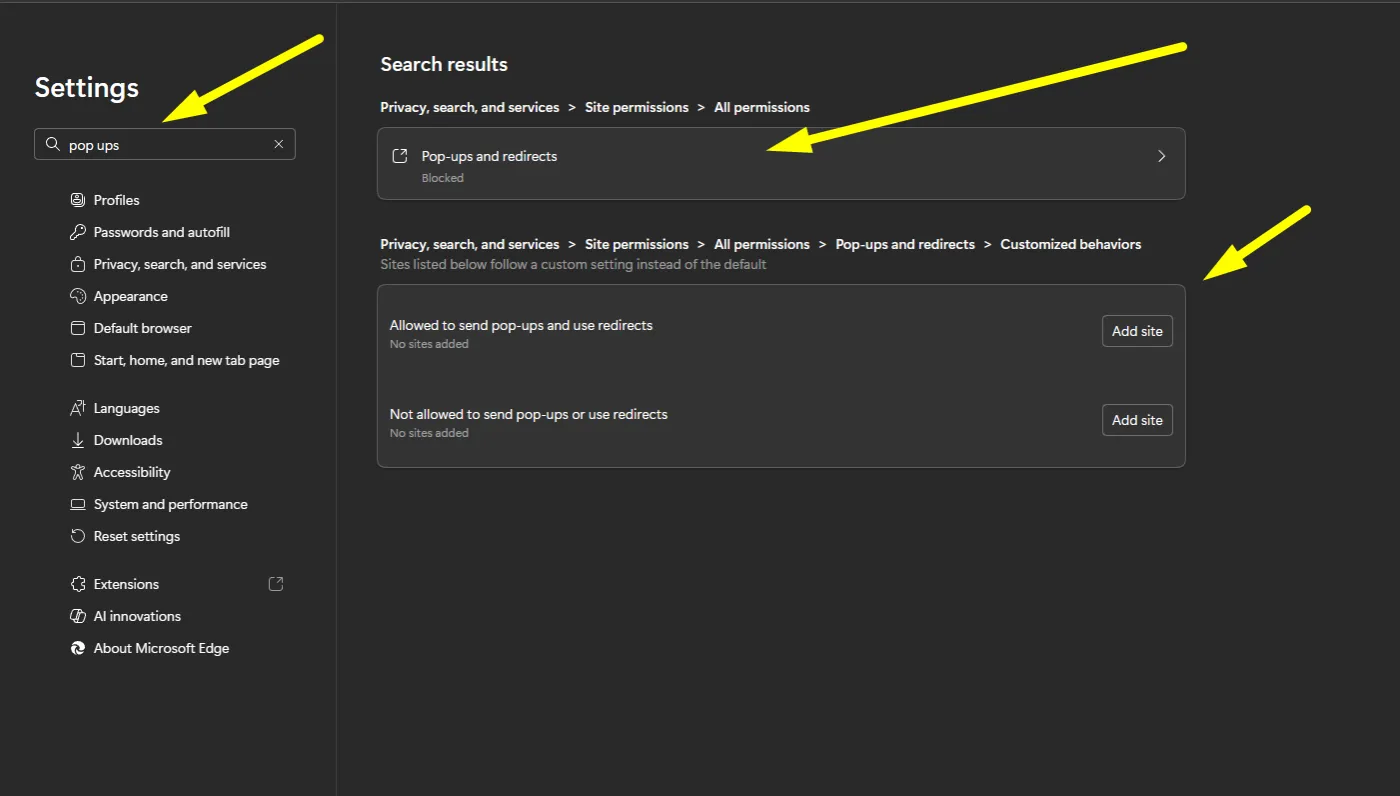
- Click Pop-ups and redirects
- Turn Block off
**If you can't find the Pop Up settings, find it using the search bar in the Settings
Mobile (Android / iPhone)
- Open the Edge app
- Tap the three dots
- Tap Settings
- Tap Privacy and security
- Tap Block pop-ups
- Turn the toggle off
Safari
Desktop (Mac)
- Open Safari
- Click Safari in the top menu
- Click Settings
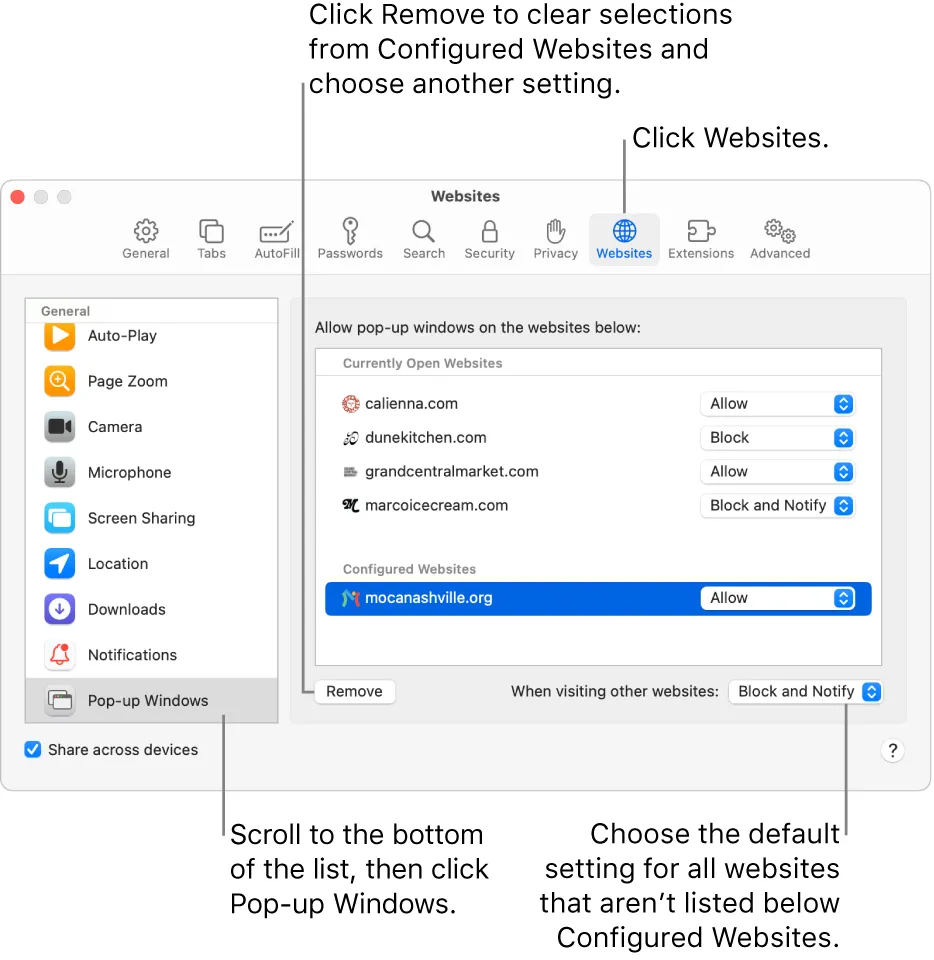
- Go to the Websites tab
- Click Pop-up Windows
- Set it to Allow
Mobile (iPhone / iPad)
- Open Settings on your device
- Scroll down and tap Safari
- Find Block Pop-ups
- Turn the toggle off